Welcome To Our Reedsburg Computer Studio LLC!
It's Nice To Meet You
Tell Me More

Services

Looking for a comprehensive and professional solution for your computer? You've come to the right place!
We provide a range of advanced computing services for all types of laptops and desktops. Whether it is a home or business computer, our professional team is here to ensure smooth and safe work.

Our range of services includes:

    Installation, maintenance and repair.
    Security and Cleaning: Completely remove viruses, spyware, and malware.
    Protect your information.
    Discretion and data security.

Full price transparency:
The cost of the service is determined fairly and varies depending on the brand of the computer and the severity of the damage.
Please note: The service price covers the cost of labor only and does not include the cost of replacement components (if hardware replacement is required).
Don't compromise on the health of your computer. Contact us today and we will be at your service! 

Reedsburg Computer Studio LLC

143 S Walnut St Lowr Lowr
Reedsburg, WI 53959

rcpus@rcpus.com

Call Us
Tel: 608-415-3663

What is BIOS?

Before your computer's operating system displays your desktop, and the programs you've installed, there's a vital component running behind the scenes that's responsible for starting the boot process—the BIOS. Although most users rarely pay attention to it, the BIOS plays a central role in starting your computer, testing the hardware components, and preparing your computer to load the operating system.

The BIOS is actually a component built into the computer's motherboard , whose job is to provide the system with the initial instructions needed to turn on the computer and begin the boot process. Immediately after pressing the power button, the BIOS goes into action and performs a series of tests known as POST (Power-On Self-Test), during which it checks that key hardware components such as RAM , storage drives - NVMe, SSD, HDD, graphics card, keyboard and mouse are working properly.

After the tests are successfully completed, the BIOS searches for a healthy operating system on the computer's drives and transfers control to it, so that it can continue the boot process. In addition, the BIOS includes basic device drivers that allow the computer to communicate with the hardware components, as well as a settings interface through which you can change various options such as the boot order, the time, and other settings related to the hardware components installed in the computer.

Why is the BIOS so important?

Without the BIOS, the computer would not be able to start the boot process and function properly. It is responsible for testing the hardware components at startup, initializing the essential components, and loading the operating system, thus acting as a kind of bridge between the hardware and software, allowing them to communicate with each other.

Furthermore, the BIOS gives the user access to a variety of system settings that allow the computer to be customized to suit different needs, and in some cases even includes security mechanisms, such as password protection of the boot process. Therefore, although it runs in the background and is almost imperceptible during daily use, the BIOS is a fundamental and essential part of any computer.

Some of the actions that can be performed using the BIOS include:

    Setting the boot order
    Setting voltages of hardware components installed in a computer
    Setting the date and time on your computer
    Changing processor settings
    Change how the power button works
    Enable or disable the built-in sound card
    Changing RAM settings and checking the amount of memory installed on your computer
    Setting or removing a BIOS password


BIOS types

There are two main types of BIOS you might encounter on computers: Legacy BIOS and UEFI (Unified Extensible Firmware Interface). Both are responsible for the computer's boot process and the initial communication between the hardware components and the operating system, but they differ in how they work and the capabilities they offer.

Legacy BIOS

The traditional firmware interface that has existed in computers for many years. It acts as an intermediary between the hardware and the operating system, performing the initial testing and initialization of the computer's components and then transferring control to the operating system. The Legacy BIOS interface is relatively simple and based primarily on text menus, with more limited options for customization and hardware management.

UEFI

The modern interface designed to replace the Legacy BIOS and solve some of the problems it had. UEFI offers an advanced and more user-friendly graphical interface that includes mouse support, so it is easier to navigate through the settings and make changes. In addition to ease of use, UEFI supports more modern technologies and provides advanced capabilities in booting and hardware management and security. Therefore, it has become the common standard in new computers.

In practice, when you enter the "BIOS" settings on a modern computer today, in most cases it is actually the UEFI interface. Although the term BIOS is still commonly used, UEFI is the current interface that handles the boot process and allows you to configure the computer's components.

How do you enter BIOS?

To enter the BIOS, you must turn on or reboot your desktop or laptop computer, and during the first few seconds of the startup process, look for a message on the screen that displays the key you need to press to enter the BIOS.

Most computers will display a message that says "Press F2 to enter BIOS" or "Press DEL to enter Setup", but the correct key varies depending on the manufacturer and model of the motherboard.

Once the message appears, quickly press the appropriate key, sometimes several times in a row, until the BIOS interface appears. If the operating system boots before you can enter the BIOS, you will need to restart your computer and try again.
The bottom line

The BIOS is a vital component of the boot process, connecting the hardware to the operating system and allowing your computer to function properly. Although it runs in the background and is not always noticeable, understanding how it works and the settings it offers can help you improve performance, troubleshoot problems, and maintain a secure and stable system.

BIOS Questions and Answers
What does BIOS mean?

The letters BIOS are an acronym for Basic Input/Output System. That is, a basic input/output system.
Is BIOS software or hardware?

The BIOS is software, or more precisely firmware, but it is stored on a component built into the motherboard.

What is Secure Boot in BIOS settings?

Secure Boot is a security mechanism that ensures that only software and operating systems with a trusted digital signature can run during the boot process. It aims to protect the computer from boot-level malware and attempts to install an unauthorized operating system.
Is the BIOS completely secure?

No. Although the BIOS is very important to the boot process and system operation, it can also be a target for malware and security exploits. Therefore, it is important to update it frequently and use available security features like Secure Boot.
Can BIOS settings affect computer performance?


Yes. Certain settings, such as processor frequency , RAM timings, and power management settings, can affect your computer's performance. However, changing settings without knowledge and experience can cause system instability or boot problems.

Is the BIOS in RAM or ROM?

Traditionally, the BIOS was stored in ROM. In modern computers, it is usually stored in flash memory, which allows the information to be retained even when the computer is turned off and allows the firmware to be updated when necessary.

Is the BIOS the same on all computers?

No. Although the basic function of the BIOS is similar on all computers, the boot process, hardware testing, operating system loading, interface, and available options vary depending on the motherboard manufacturer and computer model. 

BIOS settings The most recommended for Linux systems are switching to UEFI mode , changing the disk controller to AHCI mode and disabling the Fast Boot feature These settings ensure full hardware compatibility, optimal storage performance, and stability when running the system.  
You can enter the BIOS settings by restarting the computer and quickly pressing the dedicated key (usually F2). , F12 , or DEL ), or directly from the Linux terminal using the command: systemctl reboot --firmware-setup.  
Below is a summary of the recommended settings and an explanation for them:
Option in BIOS Recommended setting Explanation and importance for Linux
Boot Mode / Sequence UEFI Compatible with modern partition management (GPT). It is recommended to abandon the old Legacy/CSM mode.
SATA Operation / Storage AHCI Essential for Linux to recognize SSD/HDD drives correctly. Intel RAID/RST mode should be avoided as it causes recognition issues.
Fast Boot / Quick Boot Disabled Prevents the computer from "skipping" critical hardware detection and allows clean access to the Boot menu.
Secure Boot Disabled (or Other OS) ) Many distributions (like Ubuntu) support Secure Boot, but more advanced distributions require it to be disabled in order to load third-party drivers.
Virtualization (VT-x / AMD-V) Enabled Required if you plan to run virtual machines (KVM, VirtualBox, Docker).

What is RAM?

RAM  ( Acronym for  Random Access Memory) is the short-term memory of a computer, which temporarily stores the data and programs that the device is currently using.  

How does it work? 

Temporary desktop: You can think of RAM as a physical desktop. The hard disk (drive) is like the cabinet where you store all your books and files, but when you want to work on a particular book, you take it out and place it open on the desk so you can immediately look at it.  

Quick access: The processor (CPU) can access any data in RAM extremely quickly and directly, much faster than reading the data from the hard drive or other storage devices.  

Volatile memory: RAM needs electricity to remember things. As soon as you turn off or lift the power switch (turn off the computer), all the information in RAM is completely erased.  

Why is RAM important? 

Multitasking: The more RAM you have, the more programs, browser windows, and apps you can run simultaneously without the device starting to slow down or freeze. 

Response speed: An adequate amount of memory ensures smooth and fast transition between the different tasks the computer performs.  

Common RAM Capacities and Uses

4GB: Handles basic tasks like writing emails, viewing documents, and light web browsing.

8GB: Works well for office work, and everyday multitasking.

16GB: Serves as the current standard and sweet spot for general productivity.

24GB & 48GB: Provides intermediate step-up options found in specific laptops and handheld gaming devices.

32GB: Ideal for heavy multitasking, streaming while gaming, and professional video editing.

64GB and above: Reserved for extreme workloads, 3D rendering, virtual machines, and high-end servers. 


It is important to ensure that your computer has enough RAM to allow smooth use, meaning no less than 8GB.

What are the main types of drives for storing data on a computer?

They are a mechanical hard drive (HDD), a solid-state drive (SSD), and an ultra-fast NVMe drive. 

Modern computing relies heavily on internal storage in a computer to manage data, run applications, and support system operations. Whether you're building a new system, upgrading an old one, or optimizing performance, understanding the different types of internal storage is essential.

Internal storage refers to any data storage device that is installed inside a computer , such as a hard disk drive (HDD) , solid-state drive (SSD) , NVMe drive , or hybrid drive (SSHD). Each type serves a unique purpose and varies in speed , durability , cost , and capacity .

Hard disk drives (HDD)

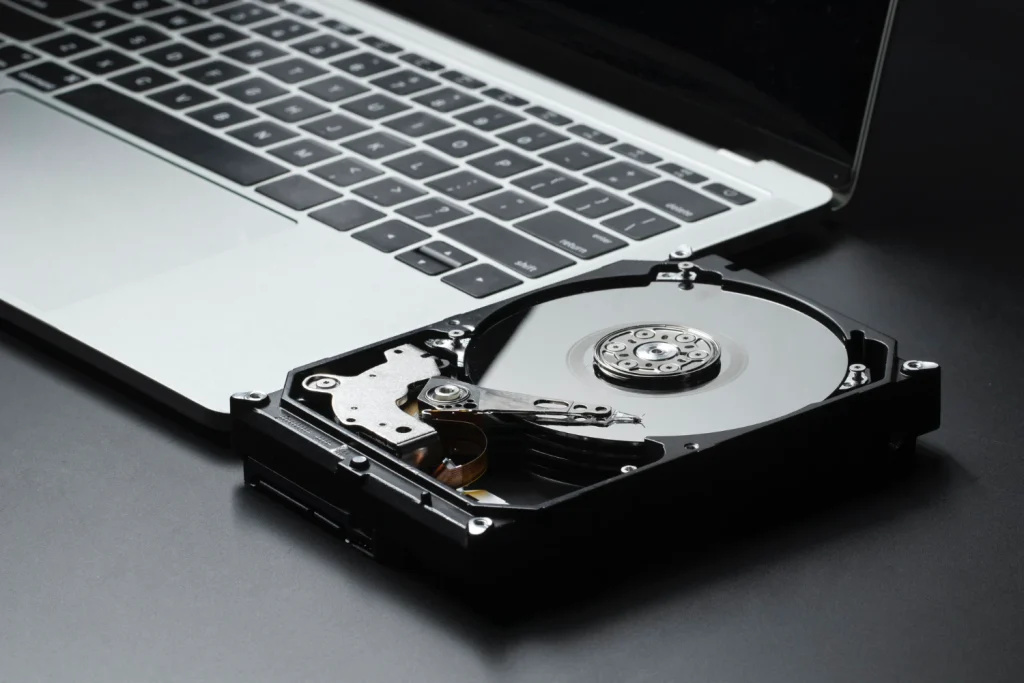
Hard disk drives (HDDs) are one of the oldest and most common forms of internal computer storage. Relying on magnetic storage technology, hard drives use spinning platters and a mechanical read/write head to store and retrieve data. Although newer technologies such as solid-state drives (SSDs) have gained attention for their speed, they remain a popular choice due to their affordability and large storage capacities .

A hard drive typically connects via a SATA interface , offering capacities ranging from 500 GB to over 20 TB. Most consumer drives spin at either 5400 RPM or 7200 RPM , with higher RPMs offering better performance. Although hard drives are slower than SSDs in terms of read/write speed, they are ideal for storing large files such as videos , photos , and backups , where speed is less critical.

Main advantages of hard drives:

    Lower cost per gigabyte making them ideal for bulk storage

    Proven technology with broad compatibility on desktops and servers

    Excellent for archival and cold storage applications


Common limitations:

    Slower data access compared to SSDs

    Mechanical components increase the risk of failure and create noise

    Higher power consumption , especially on 3.5-inch desktop drives

In modern systems, hard drives are often used in dual-drive configurations , where the SSD handles the operating system and applications, while the hard drive stores larger, less frequently accessed data. This approach provides a cost-effective balance between performance and capacity .

Whether you're building a computer for media storage , data storage , or general use, hard disk drives remain a reliable and cost-effective storage option within today's diverse range of internal storage devices .

Solid State Drives (SSD)

Solid-state drives (SSDs) have become the preferred choice for modern internal computer storage , offering dramatically faster performance compared to traditional hard disk drives (HDDs). Instead of spinning platters, SSDs use NAND flash memory to store data, allowing for much faster read/write speeds , lower latency, and improved system responsiveness.

Whether you're booting up your operating system , launching applications, or transferring files, SSDs significantly reduce wait times. Common types include SATA SSDs and NVMe SSDs —the latter connecting via a PCIe interface for extremely high throughput and lower overhead.

Main advantages of SSD drives:

    Faster boot and application loading times

    Quiet operation with no moving parts

    Lower power consumption , ideal for laptops

    Improved durability and shock resistance


While SATA SSDs are a great entry point, NVMe drives offer top-tier performance for power users. Their M.2 form factor also saves space, making them popular in slim laptops and compact desktops.


However, SSDs tend to be more expensive per gigabyte than hard drives and are generally available in smaller capacities—though that gap is narrowing. Most users combine a smaller internal SSD for speed with a larger hard drive for storage, optimizing both performance and cost.


In short, if you're looking for a fast, energy-efficient, and reliable internal storage solution , an SSD is a smart investment—whether you're upgrading an older system or building something new from the ground up.


NVMe storage explained

If speed is your priority, NVMe storage is a game changer. Short for Non-Volatile Memory Express , NVMe SSDs are designed to take full advantage of the high-speed PCIe interface , delivering much better performance than traditional SATA-based SSDs .

Unlike SATA SSDs, which are limited by the older AHCI protocol, NVMe drives use a modern, efficient command set optimized for flash memory . The result is lower latency , faster data transfer rates , and significantly improved input/output operations per second (IOPS) —especially for tasks that involve multiple simultaneous requests, such as gaming, video editing, or running virtual machines.

Why NVMe stands out:

    Ultra-fast read/write speeds (up to 7,000 MB/s with PCIe Gen 4)

    Minimal latency , ideal for real-time workloads

    Compact M.2 size , perfect for builds with limited space

    Reduced power consumption , especially in idle mode


While NVMe drives are more expensive per gigabyte than traditional SSDs, the performance boost is worth it for users who demand the best. They are especially useful as boot drives or primary drives in systems where speed is paramount.

In conclusion, if you are building a high-performance PC , upgrading a workstation, or simply want the fastest internal storage in a computer available today, NVMe SSDs should be at the top of your list.


Hybrid drives (SSHDs)
Hybrid drives , also known as SSHDs (solid-state hybrid drives), combine the best of both worlds— hard disk storage capacity and SSD performance. They combine a traditional spinning hard drive with a small amount of NAND flash memory , creating a smart storage solution that balances speed , cost , and capacity .

The idea is simple: Files and data you access frequently—like your operating system , apps, and startup files—are stored on the solid-state drive for faster access. Meanwhile, large files like videos, photos, and documents remain on the larger, slower hard drive. A built-in controller automatically manages what data is stored where, without the need for user intervention.

Advantages of SSHD drives:

    Faster boot times and file loading than standard hard drives

    Larger capacities than most SSDs, at a more affordable price

    Seamless integration into systems - uses SATA interface standard


Considerations:

    Not as fast as full SSDs (Solid State Drives)

    Limited flash memory (typically 8GB-32GB)

    Performance improvement depends on usage patterns and caching algorithms


SSHDs are particularly useful in laptops or desktops where users want a single-drive solution that offers both capacity and responsiveness. While they're not a perfect replacement for SSDs in terms of raw speed, they're a solid upgrade from traditional hard disk drives—especially for users on a budget.

If you're looking for a cost-effective internal storage option that doesn't compromise too much performance, an SSHD is worth considering.


M.2 and PCIe interface storage

When it comes to modernizing internal computer storage , few innovations have been as impactful as the M.2 form factor and the PCIe interface . Together, they have made high-speed storage not only faster, but also more compact and efficient—especially in laptops and small form-factor PCs.

What is M.2?

M.2 is a thin, rectangular storage form factor designed to replace older, bulkier standards like 2.5-inch SSDs. It plugs directly into the motherboard , eliminating the need for cables and reducing clutter inside the case. M.2 drives can use either PCIe or PCIe interfaces, but the real speed improvements come when combined with PCIe NVMe protocols.

PCIe Interface: Why It Matters

PCIe (Peripheral Component Interconnect) is a fast interface traditionally used for graphics cards and expansion devices. When used for storage—especially with NVMe SSDs —it offers incredible read/write speeds , up to 7,000 MB/s with PCIe Gen 4 , and even faster with PCIe Gen 5 .


Considerations before buying

    Motherboard compatibility check for M.2 slots and PCIe lanes

    Ensure proper thermal management , as high-speed drives can get hot.

    Use a heat sink if your M.2 drive lacks one.

Final recommendations

    Casual users and office work choose a SATA SSD for fast response without emptying your pocket

    Gaming and creativity workloads : Choose an NVMe SSD for high-speed data access

    Bulk storage Use a hard disk for media libraries, backups, or archives

    Balanced approach : Consider a dual drive setup (SSD + HDD)

    Upgrading? Always check form factor (M.2, 2.5-inch) and interface (SATA vs. PCIe)

About

Should you repair, upgrade or replace your computer?

Our Amazing Team

The Human Code: Our Team's Character and Professionalism in Computing
Embedding virtues like kindness, accountability, and fairness into our technological framework, we ensure open communication flows freely. By intentionally designing technology around these ethical pillars, we allow collaborative systems to emerge naturally.

...

Amalya Zisels

Lead Developer

...

Ken Garrity

Lead Marketer

...

Frank Neumann

Lead Consultant

Tip:

We all know that the value of the information on a computer is very high and in most cases is worth much more than the value of the computer itself. Back up your valuable information at least once a week to prevent data loss. We have encountered many cases of data loss over time, and all of this is caused by not making regular backups . Our information on a laptop and desktop is stored on a component called a hard disk. It is not possible to predict when this component will fail, so we must perform the backup operation. Copying our valuable information to another device will ensure that in the event of a computer hard disk failure, we will have another copy.


Proudly serving the cities, villages, towns, and unincorporated communities located within Sauk County, Wisconsin: Baraboo, Reedsburg, Prairie Du Sac, Sauk City, Spring Green, Lake Delton, Delton, West Baraboo, Excelsior, LaValle, Merrimac, Dellona, Sumpter, Woodland, Washington, Greenfield, Fairfield, Winfield, Honey Creek, Plain, Ironton, Troy, Franklin, North Freedom, Westfield, Bear Creek, Freedom, Rock Springs, Loganville, Lime Ridge, Black Hawk, Bluffview, Cassell, Crawford Crossing, Dellwood, Denzer, Greens Corners, Hill Point, La Rue, Leland, Loddes Mill, Loreta, Moon Valley, Sandusky, Valton, Witwen, Cazenovia, Wisconsin Dells. Reedsburg Computer Studio LLC provides comprehensive computing services to its diverse clientele, while emphasizing support and service

...
...
...
...

Why we recommend and use ESET NOD32 Antivirus ..

It is a leading security solution that provides strong protection against malware, ransomware, and other cyber threats. In addition to the protection tools, the antivirus offers full support, including telephone support.

Here are five benefits of using ESET NOD32 Antivirus : Proactive protection: ESET NOD32 Antivirus uses advanced AIDA technology to provide proactive protection against new threats by identifying and analyzing suspicious behavior on your device. Efficient use of system resources: ESET NOD32 Antivirus uses minimal system resources, ensuring optimal performance without compromising security. User-friendly interface: ESET NOD32 Antivirus, thanks to its friendly interface and intuitive features, is easy to use for both novice and advanced users. Regular updates: ESET NOD32 Antivirus is regularly updated to keep up with the latest threats and ensure maximum protection for your device. Customizable settings: ESET NOD32 Antivirus offers customizable settings that allow for personalized protection and a variety of scanning options to suit different needs.

In summary, ESET NOD32 Antivirus offers comprehensive security measures, efficient use of system resources, a user-friendly interface, regular updates, and customizable settings, making it an ideal choice for anyone looking for reliable and effective antivirus software.


...

Hours

Mon-Wed: 9:30 AM - 5:30 PM |Thu-Fri: 9 AM - 5 PM |

Saturday 8:30 AM–3:30 PM & Sunday 1:30–5:30 PM

Our hours vary daily to accommodate an active schedule and urgent client needs. Because emergency cybersecurity responses always take absolute priority, our availability can change suddenly.

To ensure we can assist you promptly, we highly recommend calling ahead or booking your appointment in advance.

We sincerely appreciate your understanding and flexibility during any unexpected delay in our service timeline.